
Context
Individuals and small teams need to quickly produce ID photos, professional portraits, travel photos, or thematic photoshoots, but the traditional workflow requires outdoor shooting, retouching, and switching between multiple tools. The context calls for a single portal to complete uploading, editing, and various AI generation scenarios, while supporting multiple languages and various output specifications.
Challenge
- Needs for ID photos, professional portraits, travel photos, and virtual try-on are scattered across different tools or services, resulting in ununified operations.
- Must balance retouching (local editing, filters, cropping) and generation (text-to-image, multiple scenarios), requiring an integrated interface and workflow.
- Needs to support multiple languages (English, Traditional Chinese) and various output aspect ratios (1:1, 4:3, 16:9, etc.) to meet different purposes.
Solution
BloomRender is an AI-driven professional photo editing and generation studio. Powered by Google Gemini API, it provides retouching, filters, ID photos, professional portraits, travel photos, thematic photoshoots, duo/group photos, and AI virtual try-on, all completed within a single web application. Slogan: Let your ideas bloom.
Preview
| Text-to-Image | AI ID Photo | Image Editor |
|---|---|---|
 |  |  |
| AI Travel Photo | AI Virtual Try-On |
|---|---|
 | 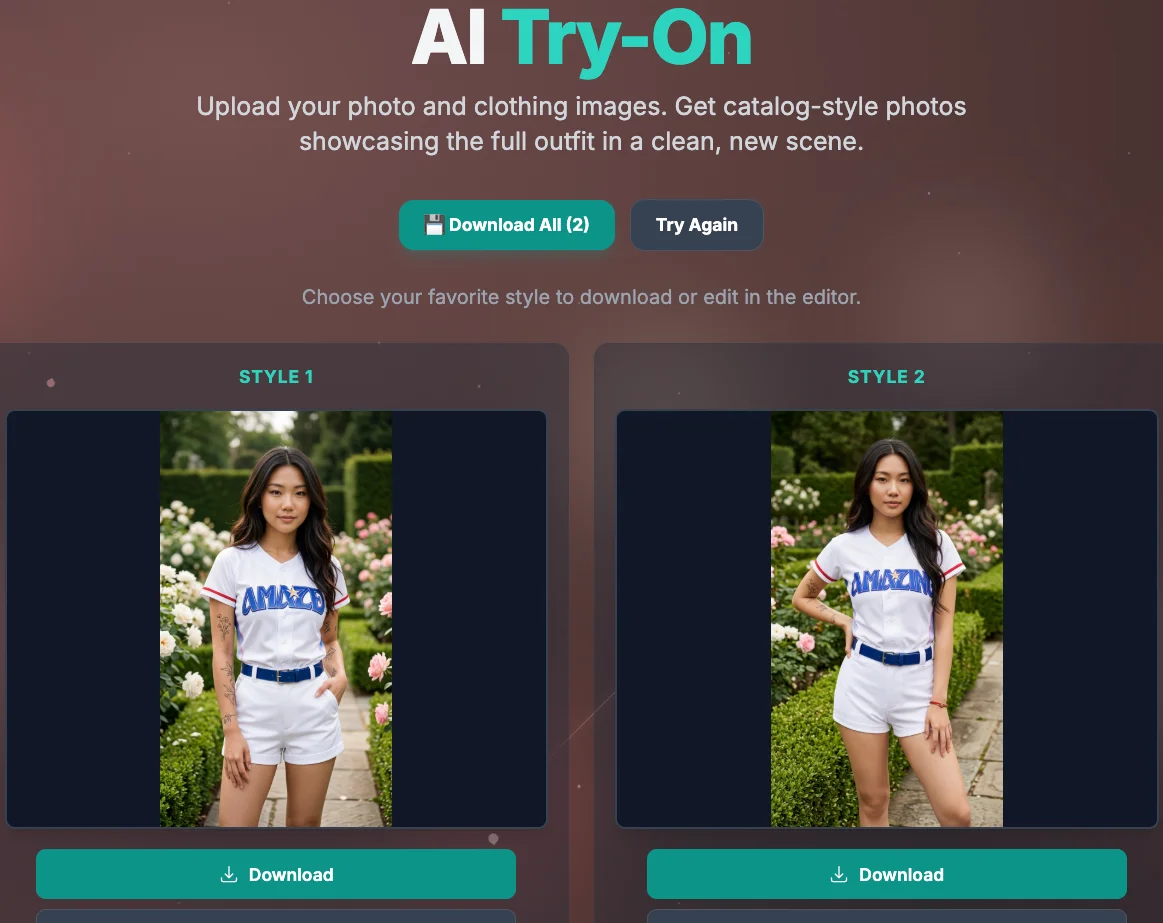 |
Feature Overview
The entry page uses tabs to switch, in the following order: Upload Image → Text to Image → Photography Services → ID Photo → Professional Portrait → Travel Photo → Thematic Photoshoot → Duo/Group Photo → Virtual Try-On.
- Upload Image — Drag and drop or select a file to enter the editor.
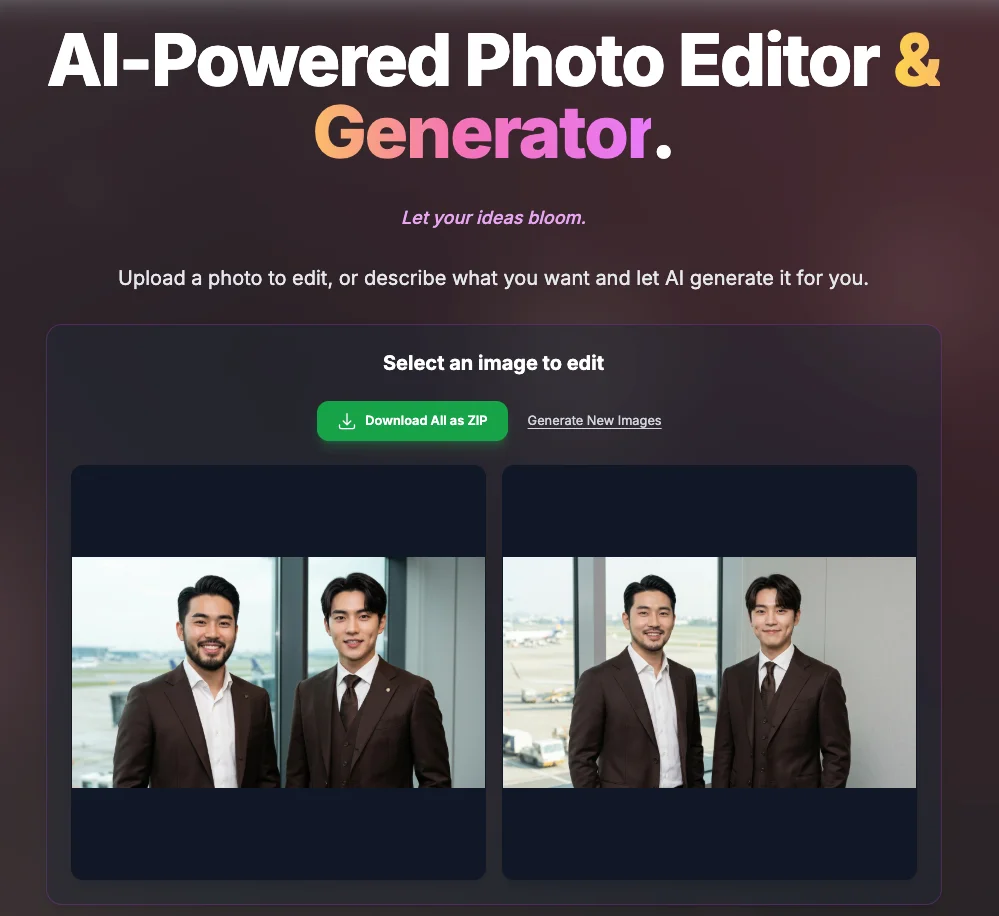
- Text to Image — Enter a description, select an aspect ratio (1:1, 4:3, 3:4, 16:9, 9:16) and the number of images (1–4), and the AI will generate images; multiple results can be downloaded individually or all downloaded as a ZIP, or one can be selected and sent to the editor.
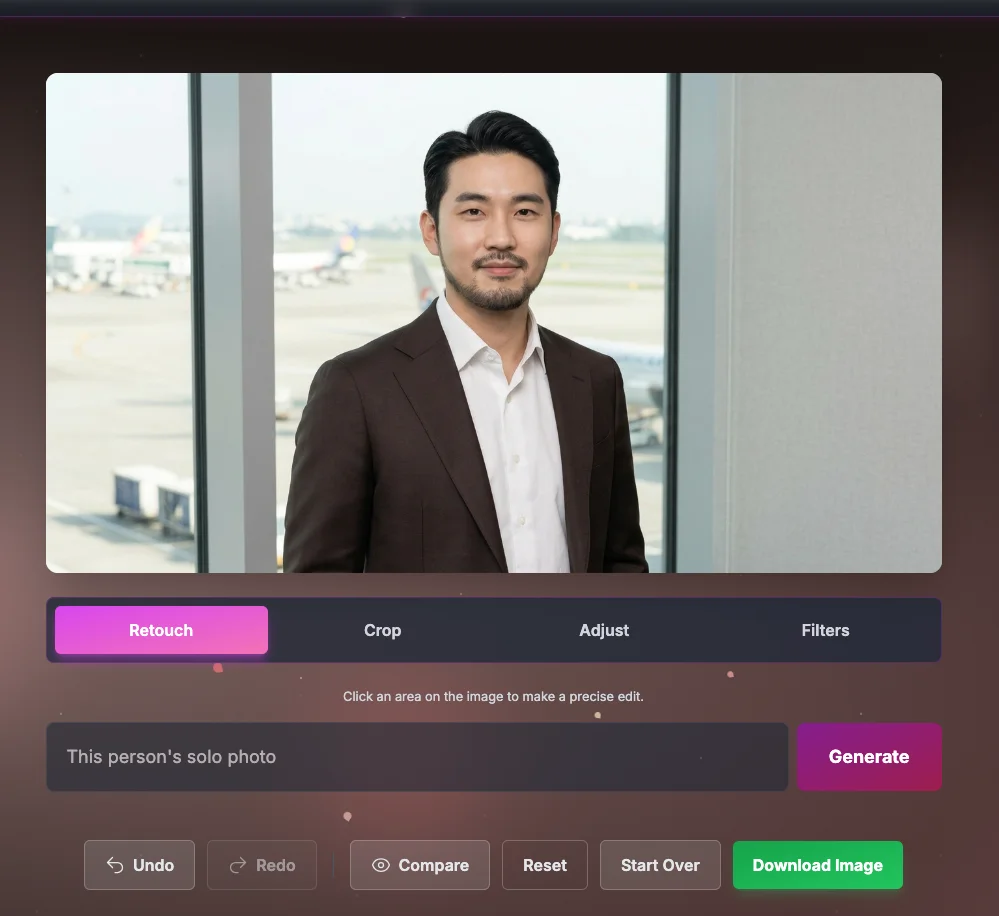
- Image Editor
- Retouch — Click a location on the screen and enter a description for local editing.
- Filter — Apply style filters (such as Synthwave, Anime, Lomo, etc.) or custom descriptions.
- Adjust — Overall adjustments (blur background, enhance details, lighting, etc.) or custom descriptions.
- Crop — Free crop or ID specifications (2-inch headshot/half-body, 1-inch, etc.).
- Supports undo, redo, compare with original, reset, and download.
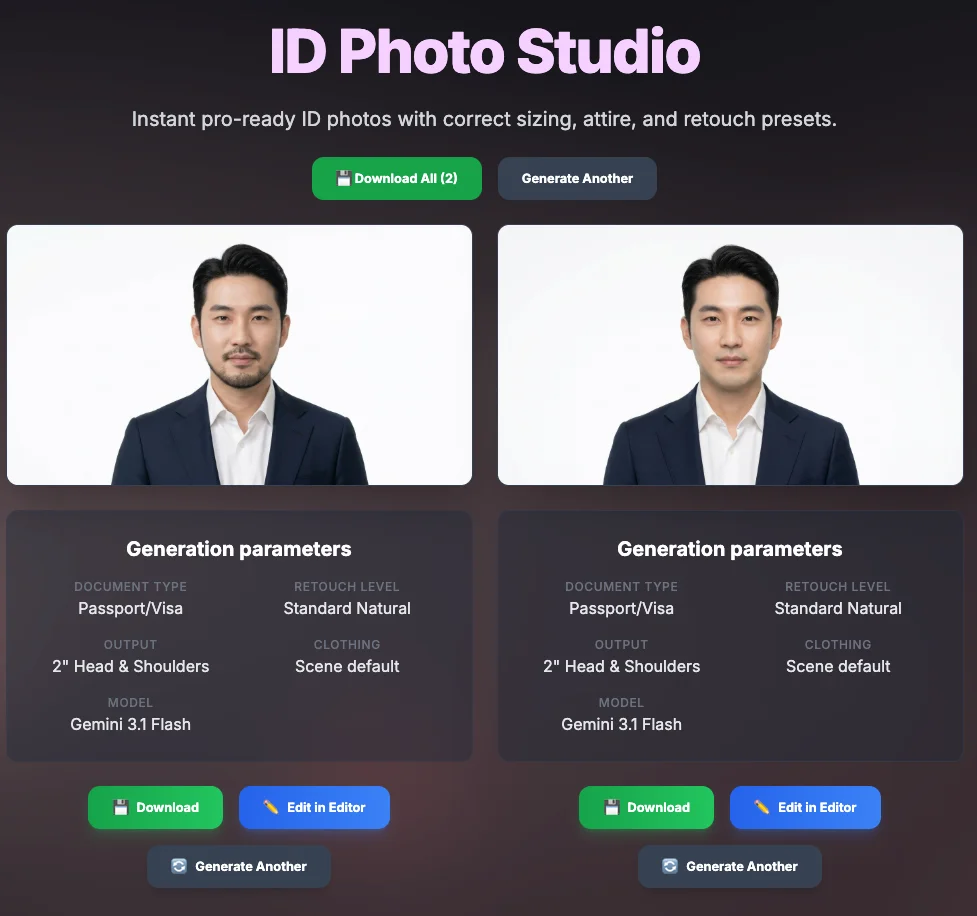
- AI ID Photo — Select ID type, retouching level, output specification, and clothing (custom descriptions and reference images can be provided), upload a portrait to generate an ID photo; supports single and batch ZIP downloads.
- AI Professional Portrait — Select type and output specification, upload a portrait to generate a professional portrait.
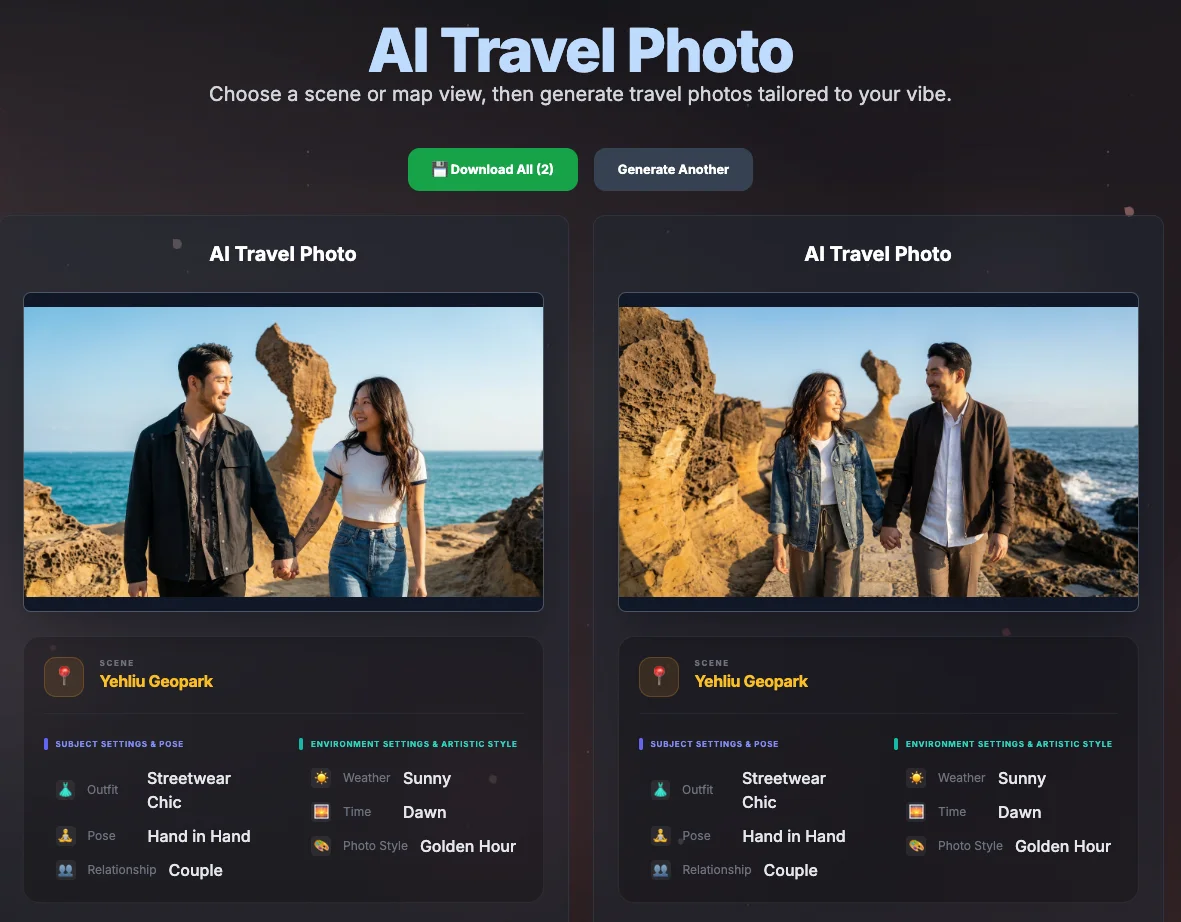
- AI Travel Photo — Select scenes from a World Map/Taiwan Map, along with options for weather, time, clothing, and composition, upload a portrait to generate travel photos; available for individuals, couples, or groups.
- AI Thematic Photoshoot — Select theme type, output size, and aspect ratio, upload a portrait to generate a thematic photoshoot.
- AI Duo/Group Photo — Upload 2 images (duo) or 3–6 images (group), select a style to generate a group photo.
- AI Virtual Try-On — Upload one portrait and 1–5 clothing images to produce multi-style try-on images, supporting single and all downloads.
- Photography Services — Portal directing to various AI generation features.
- Settings — Google GenAI API key, model (Gemini 2.5 Flash / Gemini 3 Pro), language, theme.
- Multilingual — English, Traditional Chinese.
- Theme — Bloom (cherry blossom background), Night, New Year.
- Generation History — View, filter, and batch download past generation results.
For detailed graphic tutorials, please refer to the BloomRender Manual in the repo (workflows for text-to-image, ID photos, professional portraits, travel photos, virtual try-on, and the editor).
Impact
- Generation Scenarios: 9+ types (Text-to-image, ID photos, professional portraits, travel photos, thematic photoshoots, duo/group photos, virtual try-on, retouching, filters), all completed in a single application.
- Languages: Bilingual in English and Traditional Chinese.
- Output Specifications: ID photos support 2-inch headshot/half-body, 1-inch, etc.; image generation supports 1:1, 4:3, 3:4, 16:9, 9:16; multiple results can be batch downloaded as ZIP.
Extension
- Integrate printing or developing APIs for a one-stop experience from generation to pickup.
- Expand with more themes and style filters, or support custom Lora/style models.
- Add usage and popular scenario analysis to optimize default parameters and workflows.
Technology & Dependencies
- Runtime — React 19, TypeScript, Vite 6
- Routing — React Router 7
- Editing — react-image-crop
- AI — @google/genai (Gemini API)
- Batch Download — JSZip (pack multiple results into a ZIP)
- Styling — Tailwind CSS (CDN), Custom CSS
- Development — ESLint, Prettier, Vitest, Husky, lint-staged
Environment Requirements & Local Execution
- Node.js 20+ (Consistent with CI recommended), npm (use
npm ciwhen usingpackage-lock.json).
- Install Dependencies:
npm install - Set API Key: Enter your Google GenAI API Key in “Settings” within the app (stored locally in the browser only).
- Start:
npm run dev, open the URL shown in the terminal (default http://localhost:3002). - (Optional) Static Images: The World/Taiwan maps for the Travel feature require
public/images/world-map.pngandpublic/images/taiwan-map.png; reference images for travel scenes can be downloaded topublic/images/scenes/according todocs/SCENE_IMAGES_SOURCES.mdin the repo. If not placed, generation can still be done via text descriptions.
Available Commands
| Command | Description |
|---|---|
npm run dev | Start the development server (port 3002) |
npm run build | Build the production version to dist/, and generate 404.html for SPA deployment |
npm run preview | Preview the build result |
npm run lint | Run ESLint |
npm run test | Run Vitest unit tests |
npm run test:watch | Vitest watch mode |
npm run format | Format with Prettier |
npm run format:check | Check formatting (without writing) |
Husky will run lint-staged (Prettier + ESLint —fix) before committing.
Deployment
- Deploy the contents of the
dist/directory to any static hosting. - GitHub Pages: Set
GITHUB_PAGES=trueduring build to make thebasebe/bloom-render/. Refer to .github/workflows/deploy.yml: pushing tomainor triggering manually will build and deploy to GitHub Pages.
License
This project is licensed under the Creative Commons Attribution-NonCommercial-ShareAlike 4.0 International (CC BY-NC-SA 4.0). See LICENSE.txt for full terms.
- Attribution — You must give appropriate credit and provide a link to the license.
- NonCommercial — You may not use the material for commercial purposes.
- ShareAlike — If you remix, transform, or build upon the material, you must distribute your contributions under the same license as the original.
Commercial Use: If you need a commercial license, please contact the author. See the “Commercial License” section in LICENSE.txt for details.